Getting Started:
Download EP Workbench
Cross-platform electrophysiology data analysis.
Click the button below to download the software for free and start your experience with our innovative tools designed for data analysis.
Download a Test OpenEP Case
Download one of the sample OpenEP cases from here
Loading a System/Case
Open EP Workbench.
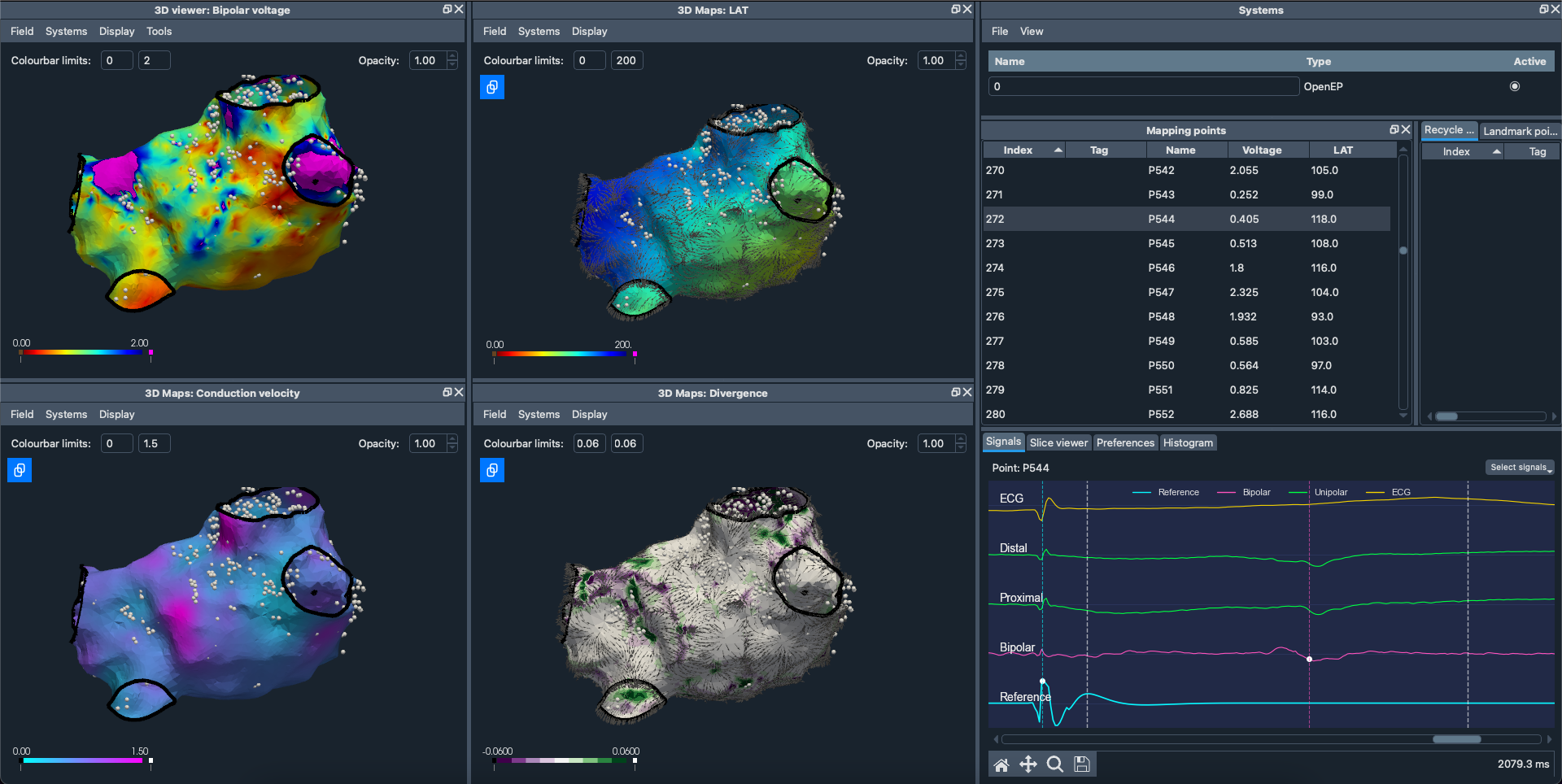
In the System tab on the right, click File → Load and select the OpenEP system file.
3D Viewer
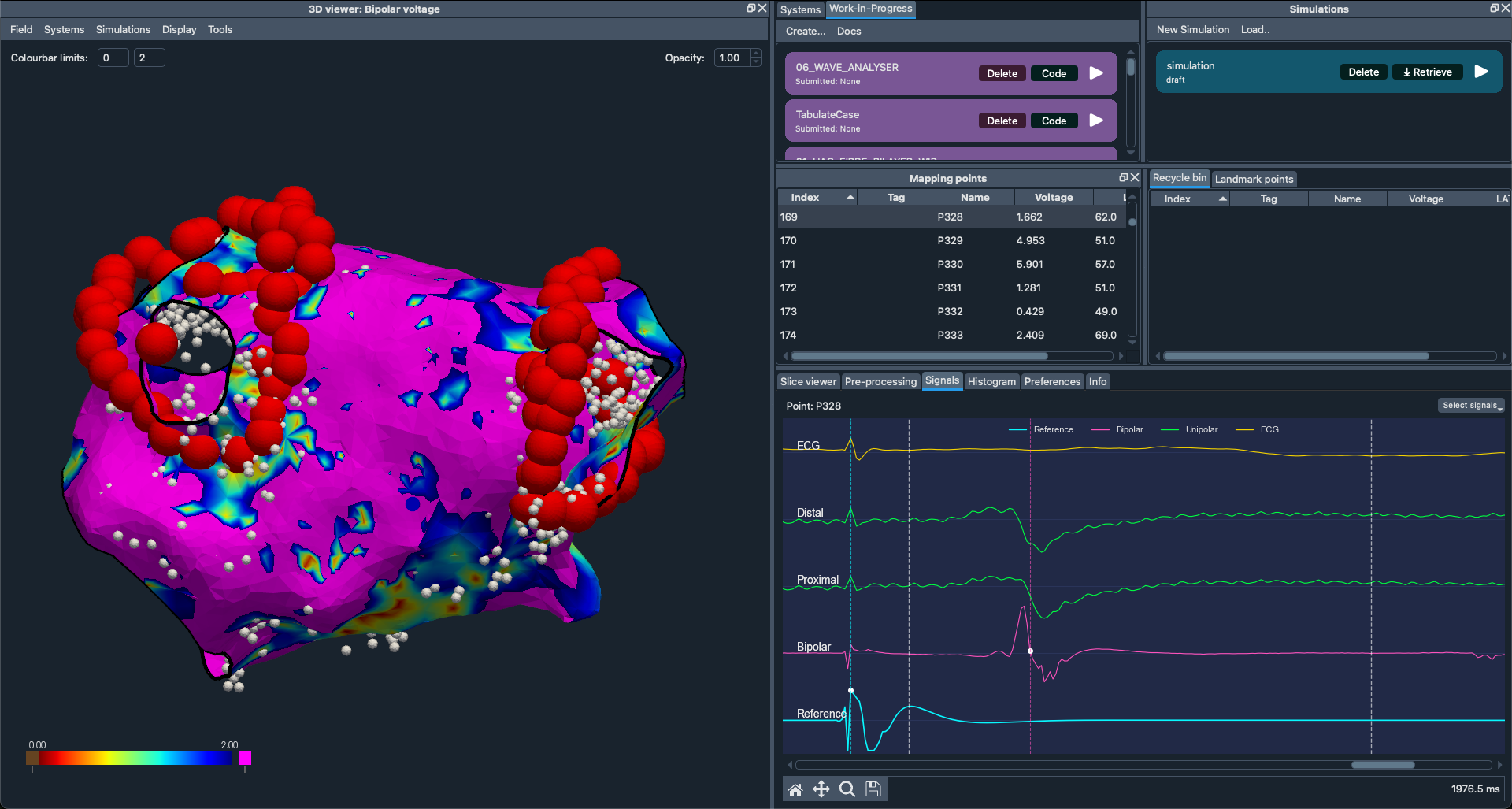
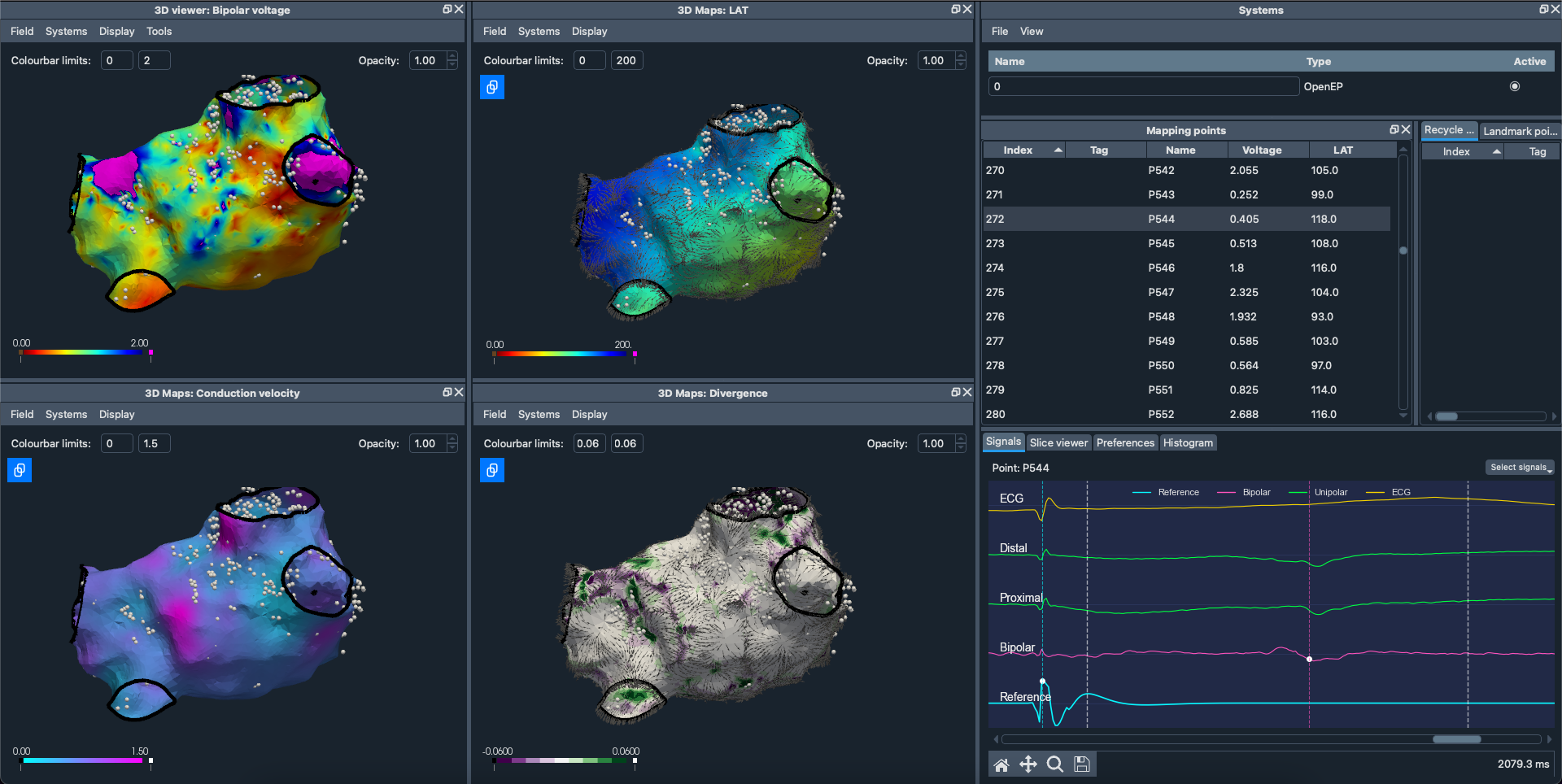
The 3D Viewer window is the large docked window located on the left. The menu ribbon has the following options:
Fields Menu: Choose which field (e.g., voltage, LAT, etc.) to visualize on your 3D mesh.
Systems Menu: Toggle visibility of different loaded systems.
Display Menu: Control display elements such as mapping points, landmarks, surface projections, and divergence arrows.
Tools Menu: Access mesh editing, landmark picking, region selection, mesh registration, and dataset combination.
Systems
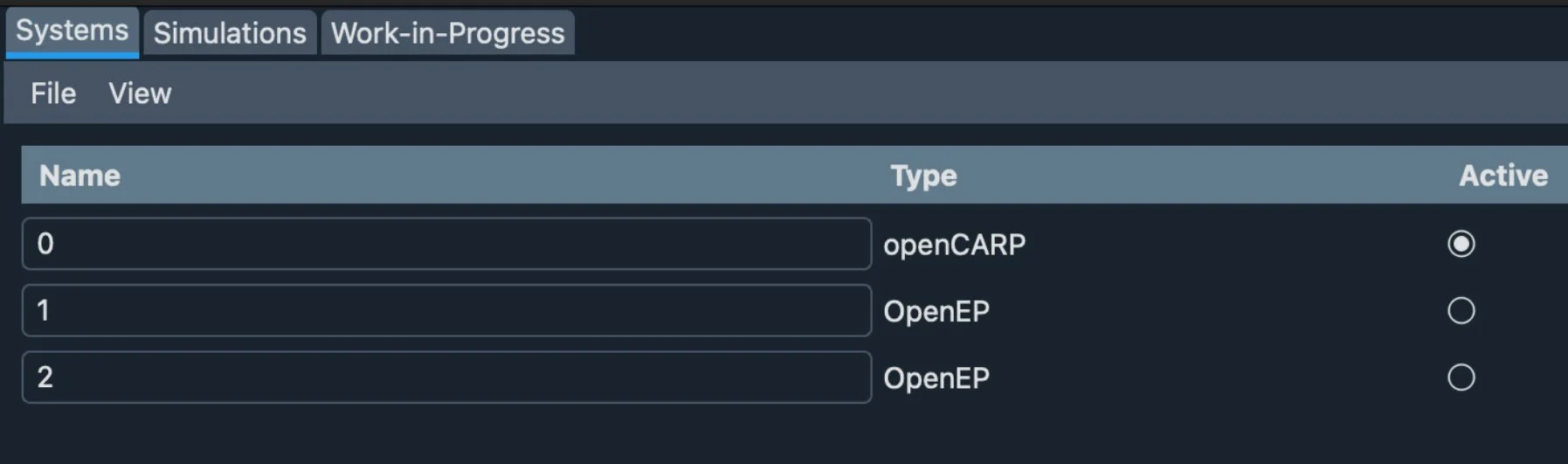
A system represents a single data object, this could be a model of the left atria or a biatrial model or even a rectangular slab.
The Systems window (on the right) lists all loaded systems.
Display multiple systems at once, and create multiple views of each system.
Select the Active system to make changes to that specific system.
Signals
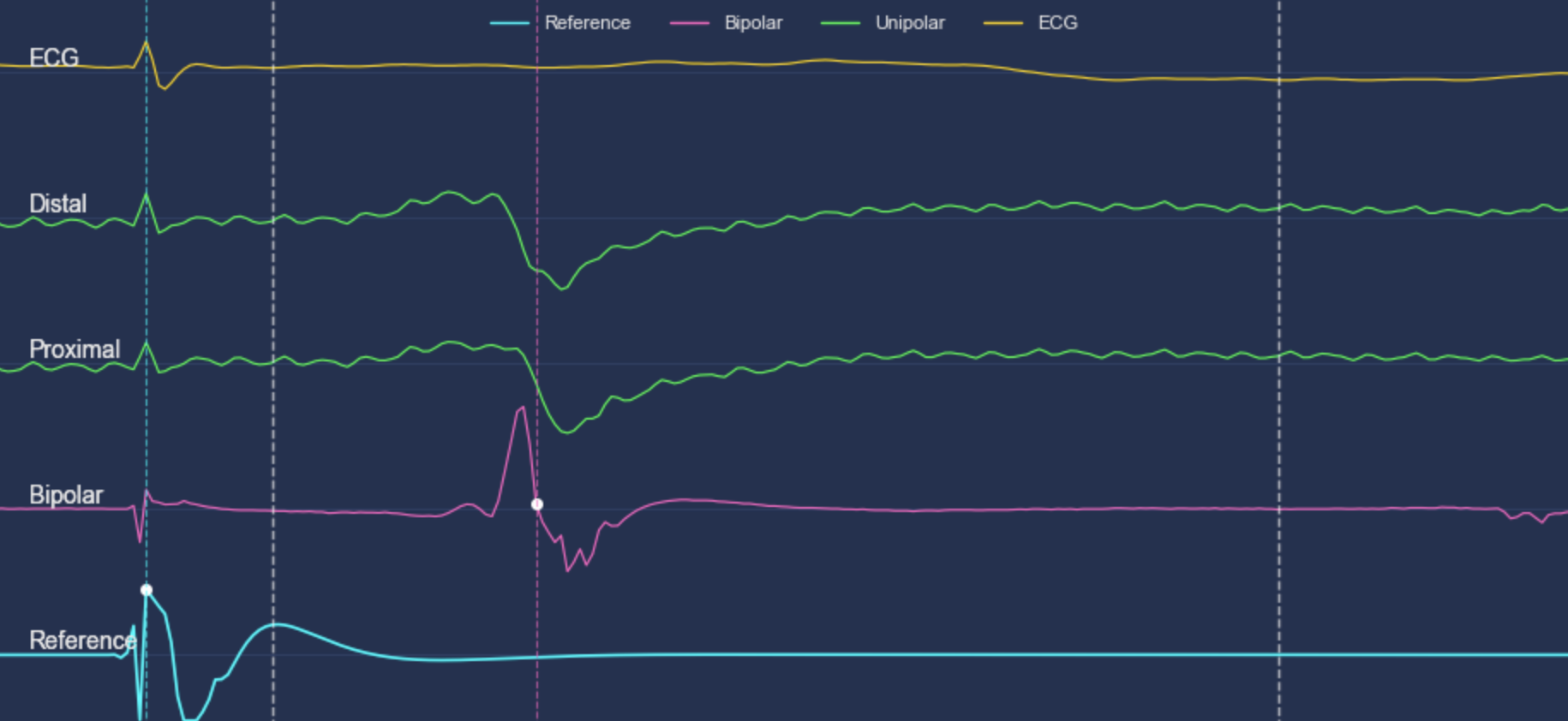
The Signals tab shows ECG signals that can be annotated within the software.
How to Annotate ECG Maps: View the guide
Histogram Analysis
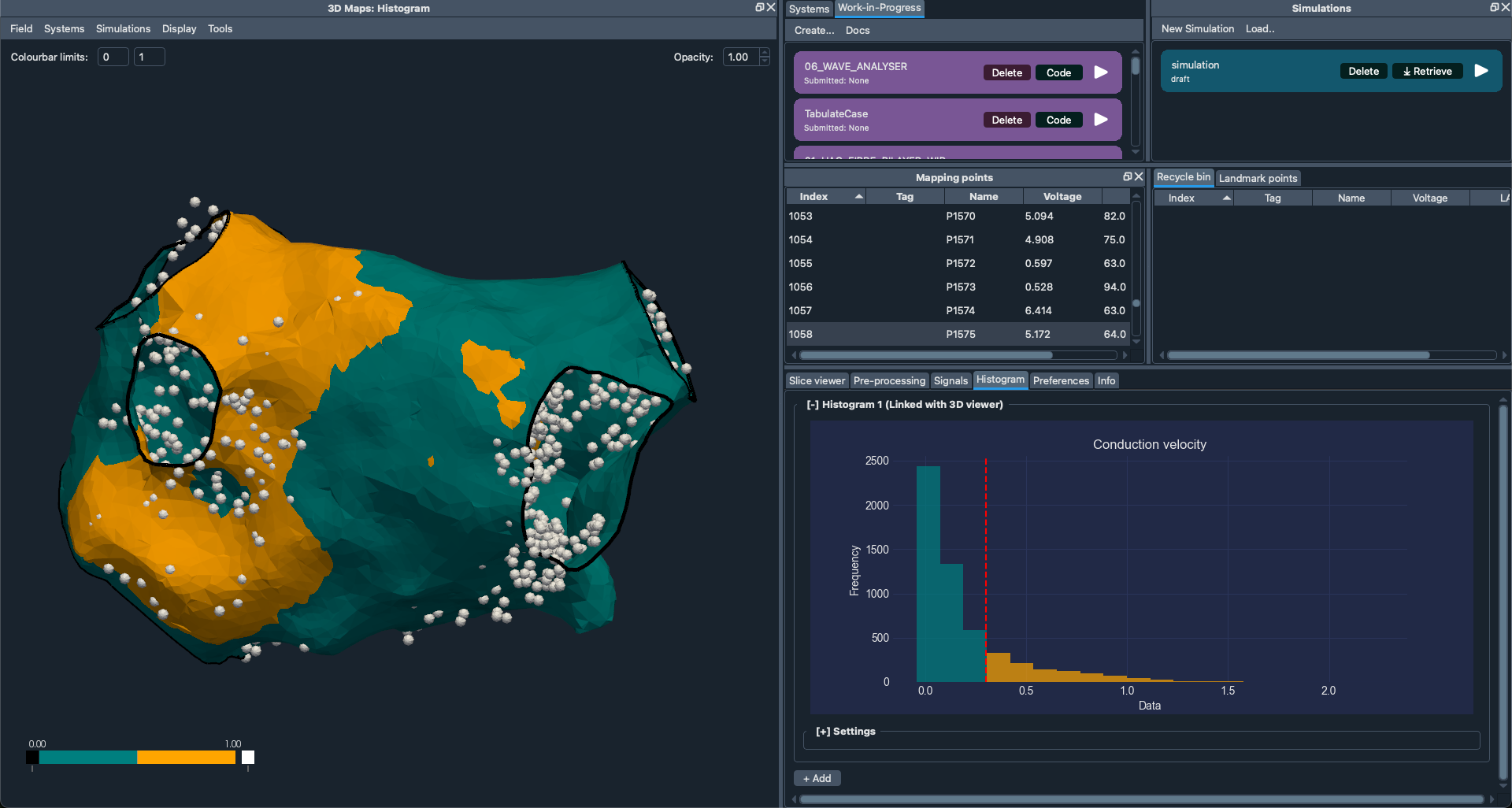
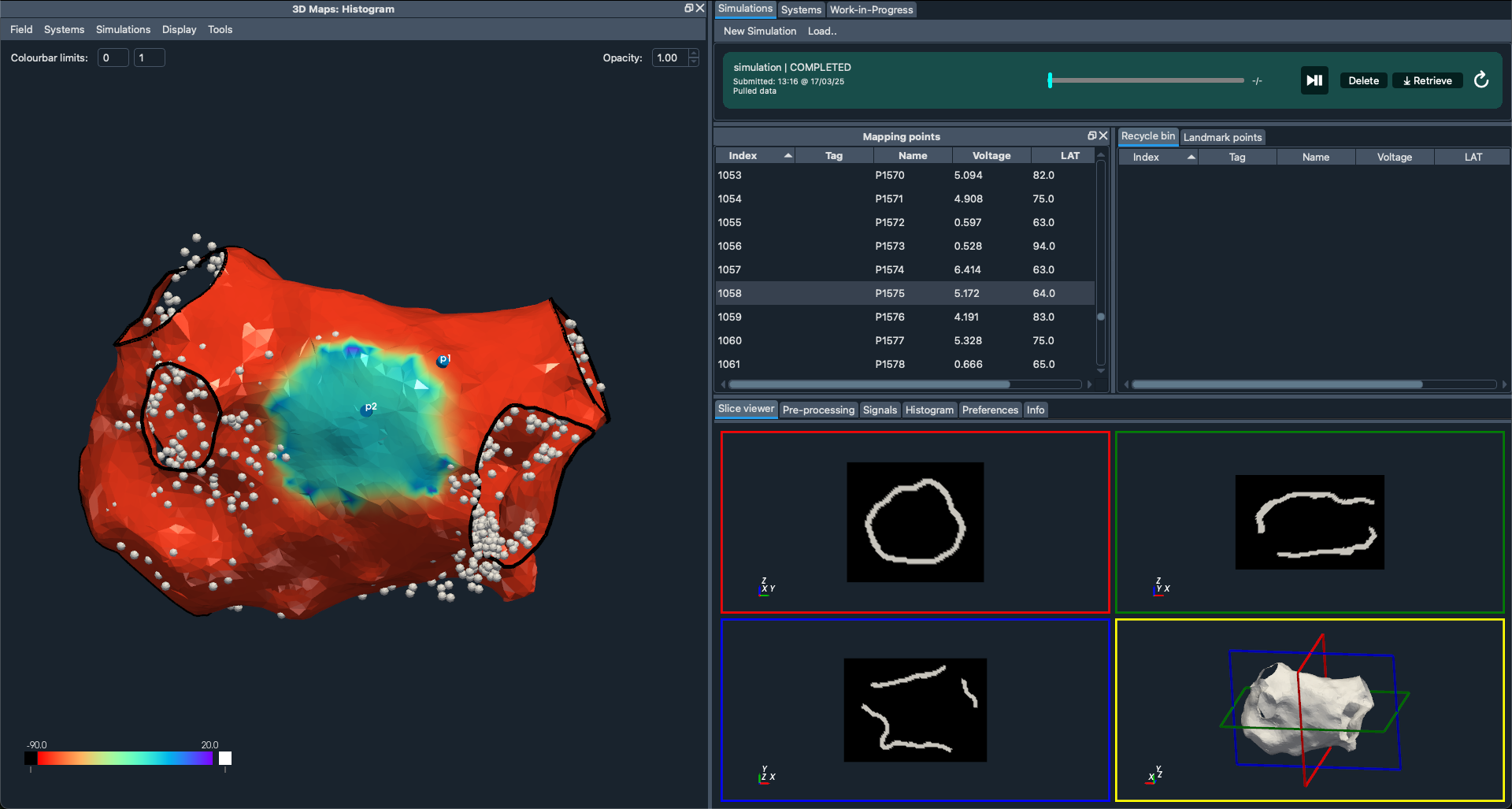
Histogram Analysis provides a quantitative view of voltage maps beyond simply measuring low-voltage areas. It is an extension of voltage area calculations, allowing multiple voltage ranges of interest. EP Workbench extends this further to analyse any Field including voltage.
Applying a Histogram
Open the Histogram tab (bottom right) > Settings.
Choose the Field you want to threshold.
Select the Threshold value.
Observe the two-color mapping applied to your mesh by selecting Histogram on 3D Viewer.
Find a comprehensive guide here: https://openep.discourse.group/t/how-to-use-ep-workbench-for-histogram-analysis-of-openep-data/127
Simulations
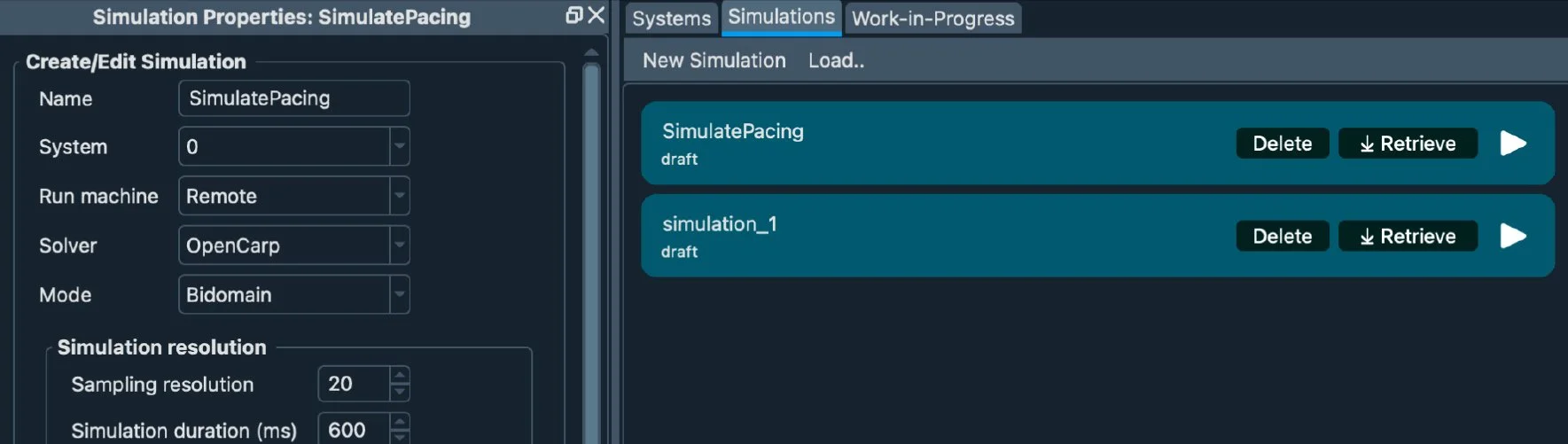
The Simulations tab (to the right of Systems) allows you to create and run simulations locally or remotely.
Note: More resources coming soon!
Work-in-Progress
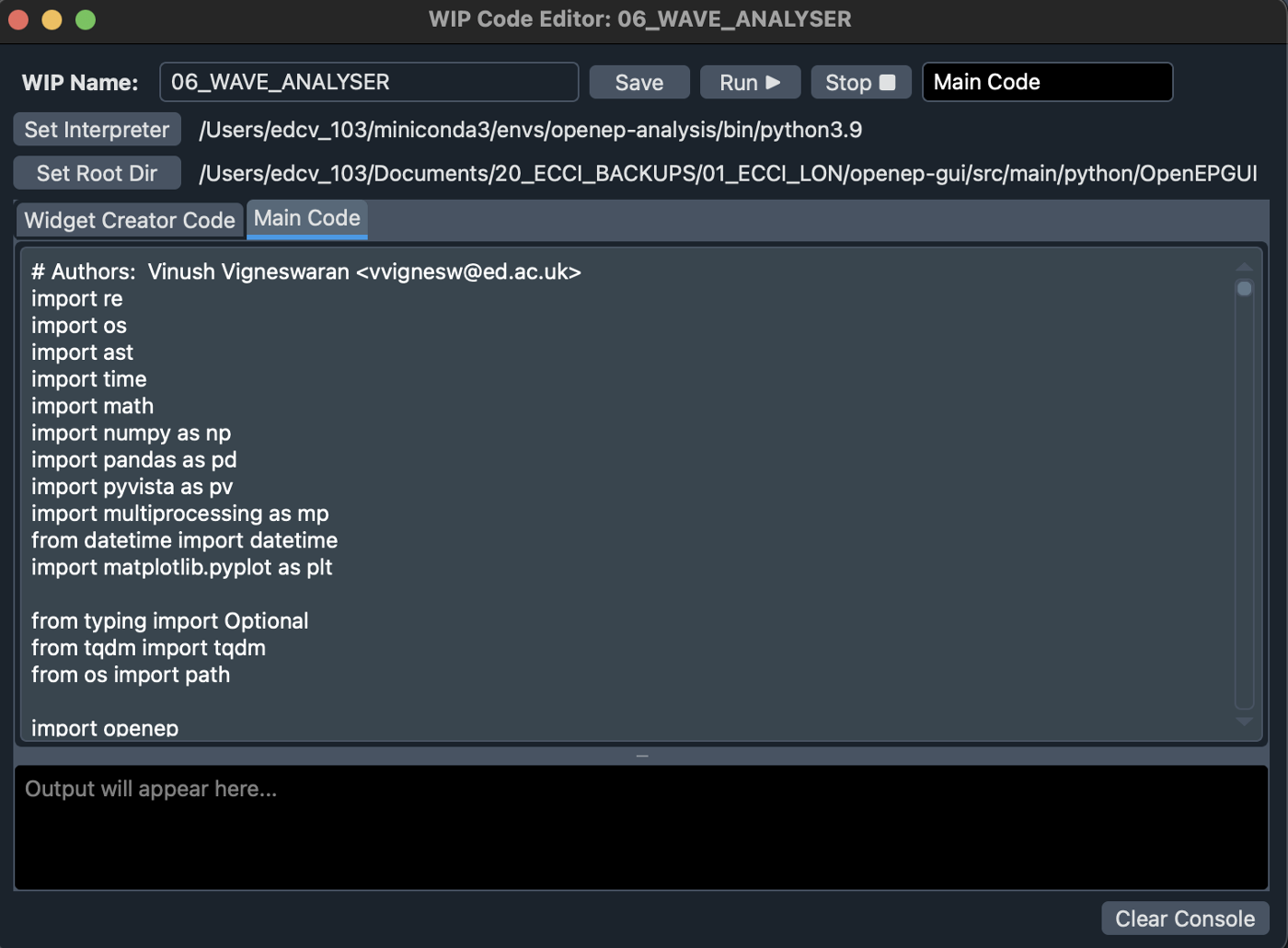
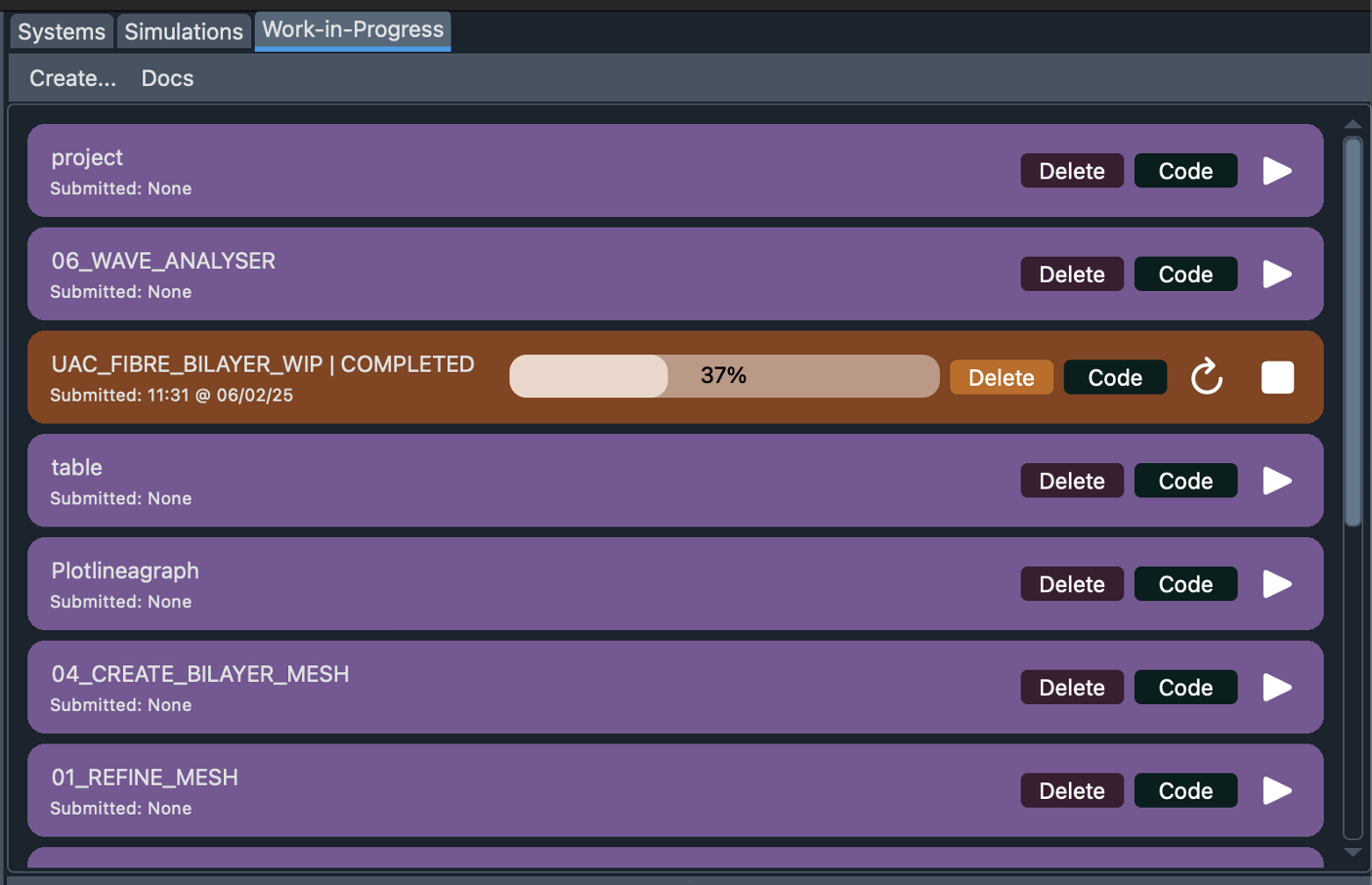
The Work-in-Progress tab lets you integrate your own code snippets to run on EP Workbench’s case objects.
You can manipulate 3D mesh data, field data, and simulation data, then display results directly in EP Workbench.